Deploying a new online community or message board requires a stable and efficient platform. Phorum is an excellent open-source choice for creating flexible and high-performance forums. This Phorum installation guide provides a straightforward process to get your message board running quickly using the Softaculous installer inside your SiteWorx control panel. Follow these steps to complete the setup without any complications.
Table of Contents
Getting Started Prerequisites
Before you begin the installation process, ensure you have everything you need for a smooth setup. Proper preparation prevents common issues and helps you get your forum online faster. You will need valid login credentials for your SiteWorx account, which provides access to your reliable Web Hosting solutions environment.
Phorum Installation Steps
This detailed walkthrough covers every action required to install Phorum. We have broken down the process into logical phases from logging into SiteWorx to finalizing the installation. Pay close attention to the configuration details to ensure your forum is set up correctly.
1. Access Your SiteWorx Control Panel
The first step is to log into your SiteWorx account. You can typically access the login page by navigating to your domain with the port number 2443. For instance, you would use an address like www.example.com:2443/siteworx/ in your web browser.
2. Locate the Softaculous Auto-Installer
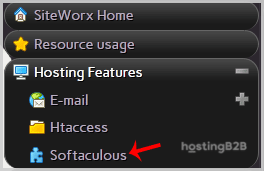
Once you are logged into SiteWorx, look for the main menu on the left side of the interface. Under the “Hosting Features” section, you will find the option for Softaculous. Click on this to launch the application installer interface.
3. Find Phorum in the Softaculous Library
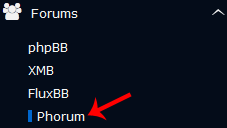
Inside the Softaculous dashboard, you will see a list of application categories in the left-hand navigation pane. Expand the “Forums” category. A list of available forum scripts will appear. Click on the “Phorum” link to proceed to its installation screen.
4. Begin the Phorum Installation
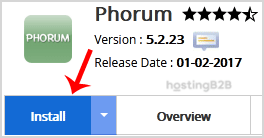
On the Phorum overview page, you will see details about the software version and its features. To start the setup, click the prominent “Install” button.
5. Configure the Installation URL
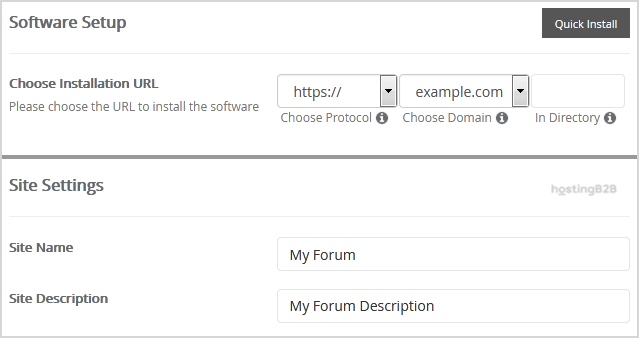
This step is critical for determining where your forum will be accessible. In the “Software Setup” section, you must define the installation URL.
- Choose Protocol and Domain Select the correct protocol (http or https) and the domain name from the dropdown menus.
- In Directory This field controls the installation path. To install Phorum on your main domain (e.g. example.com), leave this field empty. To install it in a subdirectory (e.g. example.com/forum), enter the directory name here.
6. Define Your Site Settings
Next, provide the basic details for your new forum under the “Site Settings” area. This information will be visible to your users.
- Site Name Enter a descriptive name for your forum. This often includes your brand or domain name.
- Site Description Write a brief description of your community’s purpose.
7. Create the Administrator Account
The “Admin Account” section is where you will create the primary user with full control over the forum. It is vital to use strong and unique credentials here.
- Admin Username Choose a unique username. For security, avoid common names like “admin” or “administrator”.
- Admin Password Create a strong, complex password. Use a combination of letters, numbers, and symbols.
- Admin Email Provide a valid email address. This address will be used for important notifications and password resets.
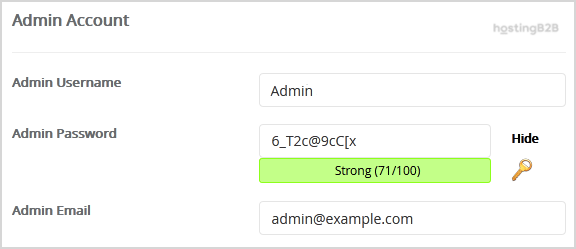
Important Note Be sure to copy your new admin username and password and store them in a secure location. You will need them to access the Phorum administrative backend after installation.
8. Review Advanced Options
Softaculous provides advanced options for database configuration and backups. For most users, the default settings are sufficient. However, you can customize the database name or configure automated backups here. Remember that frequent automated backups can consume significant disk space. You can always generate a full backup manually when needed.
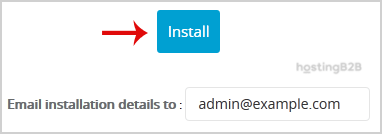
9. Finalize the Installation
After reviewing all your settings, scroll to the bottom of the page and click the final “Install” button. Softaculous will now handle the entire installation process, including creating the database and copying the necessary files.
Congratulations. You have successfully installed Phorum using Softaculous in SiteWorx. Your new forum is now ready for you to configure and customize.
After the Installation Next Steps
With Phorum installed, your work is just beginning. Your immediate next steps should be to log into the Phorum admin panel using the credentials you created. From there, you can start configuring categories, user permissions, and appearance settings to match your community’s needs. As your forum grows, you may find that you need more resources, making a move to scalable VPS Hosting an excellent choice for future performance. The Softaculous auto-installer can also be used to install other forum software like MyBB if you decide to explore alternatives.
Frequently Asked Questions
Phorum is an open-source message board software written in PHP. It is designed to be flexible and meet the needs of different online communities, emphasizing a stable and high-performance core that developers can easily extend with modules.
Softaculous is an auto-installer that simplifies the process of deploying web applications. It automates database creation, file transfers, and basic configuration, reducing a complex manual process to just a few clicks. This saves time and minimizes the risk of installation errors.
Yes. If you have already configured a subdomain in your hosting account (e.g. forum.example.com), it will appear in the “Choose Domain” dropdown menu during the Softaculous installation process. You can select it there to install Phorum directly on the subdomain.
Installing in the root directory (by leaving the “In Directory” field blank) makes your forum accessible directly at your main domain, like www.example.com. Installing in a subdirectory (by entering a name like “forum”) makes it accessible at a path like www.example.com/forum, leaving your main domain available for another website.
To maintain security, always keep your Phorum software and any installed modules updated to the latest versions. Use strong, unique passwords for all administrative accounts, and regularly back up your forum’s files and database.