Running into website errors or performance bottlenecks can be frustrating. Often, these issues stem from a PHP script needing more memory than it is allowed to use. This guide provides a straightforward method to increase the PHP memory_limit in DirectAdmin using the CloudLinux PHP Selector. By properly configuring this setting, you can resolve common errors and ensure your applications run smoothly.
Table of Contents
Understanding the PHP Memory Limit
The PHP memory_limit is a server setting that defines the maximum amount of memory a single PHP script can consume. When a script’s demands exceed this value, it triggers a fatal error, often displayed as an “Allowed memory size exhausted” message. Adjusting this limit is a critical step in performance tuning and troubleshooting, especially for content management systems like WordPress or Magento and complex applications that require more resources.
How to Change the Memory Limit in DirectAdmin
You can easily adjust the PHP memory_limit for your account through the DirectAdmin control panel. The CloudLinux Selector provides a simple graphical interface to manage this and other PHP settings without needing to edit configuration files manually. Follow these four steps to complete the process.
- Log in to your DirectAdmin Account
First, access your hosting control panel by logging into your DirectAdmin account with your username and password. - Navigate to the PHP Selector
Once logged in, locate the Extra Features section. Click the Select PHP version icon. If you cannot see it immediately, you can type “Select PHP” into the navigation filter box to find the option quickly.
- Switch to the Options Tab
In the PHP Selector interface, click on the Options tab in the main navigation menu. This will display a list of configurable PHP values for your account.
Note: If you see an error message related to a “native” PHP version on this page, you must first return to the main selector page and change PHP version to any non-native option from the dropdown list. After saving the new version, you can return to the Options tab. - Adjust the memory_limit Value
Scroll through the list of options until you find memory_limit. Click the dropdown menu next to it and select the new value that meets your application’s requirements. The change is saved automatically and takes effect almost immediately.

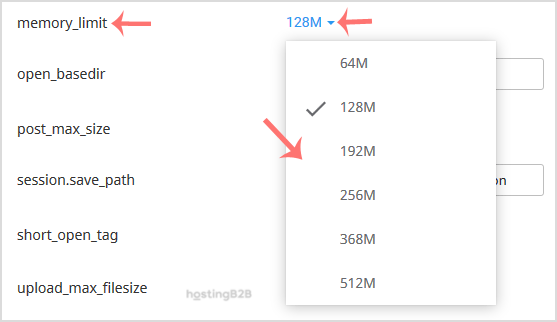
By following these steps, you have successfully updated the PHP memory limit for your hosting account. This simple configuration can resolve a persistent PHP memory error and improve your website’s stability.
Best Practices for Configuration
While increasing the memory limit is a common fix, it is important to choose an appropriate value. Setting the limit too high can allow inefficient scripts to consume excessive server resources, potentially slowing down your entire site. A good practice is to increase the limit incrementally until the error is resolved. For demanding applications or high-traffic sites that consistently hit memory caps, your current plan may be insufficient. In these situations, upgrading from reliable web hosting solutions to a more powerful platform like Dedicated Server Hosting provides the necessary resources and control for optimal performance.
Frequently Asked Questions
The default PHP memory limit can vary depending on the server configuration, but common values are 128M or 256M. Our platform allows you to adjust this setting to suit your specific needs.
The CloudLinux PHP Selector provides a list of pre-approved values that are optimized for server stability and performance. You must choose a value from this dropdown list.
The required memory limit depends on your website’s theme, plugins, and traffic. If you are experiencing memory exhausted errors, check the documentation for your software or increase the limit in small steps until the issue stops.
No, changing the memory_limit value only affects that specific directive. Other settings, such as `max_execution_time` or `upload_max_filesize`, remain unchanged unless you modify them separately in the same interface. You can also manage PHP extensions from this screen.
The process is very similar for cPanel users who also have the CloudLinux PHP Selector. The interface looks nearly identical. You can find specific instructions in our cPanel memory limit guide.