Creating a dedicated FTP account in DirectAdmin is a fundamental step for secure and efficient website file management. Whether you need to grant a developer limited access or simply want a streamlined way to upload content, a properly configured FTP user is essential. This guide provides a clear, step-by-step tutorial on how to create an FTP account in DirectAdmin, explaining the critical settings that safeguard your data.
Table of Contents
Step-by-Step Guide to Create Your FTP Account
Follow these instructions carefully to set up a new FTP user within your DirectAdmin control panel. Each step is designed to ensure your account is both functional and secure from the start.
- Log in to Your DirectAdmin Account
First, access your DirectAdmin control panel using the credentials provided for your secure web hosting account. - Navigate to FTP Management
Once logged in, locate the Account Manager section. Click the FTP Management icon. Alternatively, you can type “FTP Management” into the navigation filter box at the top of the page and select the option when it appears.
- Initiate Account Creation
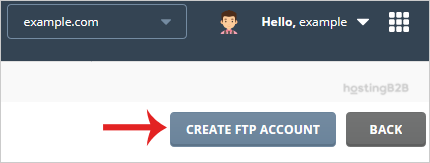
In the top right corner of the FTP Management screen, click the button labeled Create FTP Account. This will open the account creation form. - Enter an FTP Username
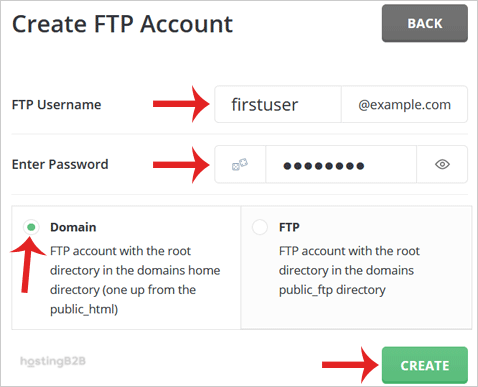
In the FTP Username field, type your desired username. Note that DirectAdmin may automatically append your domain name, creating a full username like [email protected]. This practice helps distinguish users across different domains on the same server. - Set a Secure Password
In the Enter Password field, provide a strong, unique password for the account. We strongly recommend using the built-in password generator to create a complex password that is difficult to guess. This is a critical part of maintaining a secure server configuration. - Choose the Directory Access Level
This is the most important step for security and usability. You must define the user’s home directory, which restricts their access to a specific part of your file system. You have four options- Domain This option grants the user access to the entire public_html directory, which is where your main website files are stored. This is a common choice for primary web managers.
- FTP This setting restricts the user to the public_ftp directory. This is ideal for sharing files publicly without giving access to your website’s core files.
- User This option confines the user to their own directory inside /home/username/, keeping them completely separate from website files. Use this for users who do not need to modify the website.
- Custom This allows you to specify a custom directory path. This is an advanced option for precisely controlling access, for example, locking a developer into a specific project folder like /public_html/staging-site.
- Finalize the Account Creation
After reviewing your settings, click the Create button. DirectAdmin will process the request and confirm the new account has been created.

Understanding Your FTP Login Details
Upon successful creation, DirectAdmin will display the new account’s login credentials. It is vital to copy this information and store it in a secure location, such as a password manager. The details typically include the hostname, the full username, the password you set, and the recommended port for connection.
Connecting with a Secure FTP Client
With your new credentials, you are ready to manage your website files. To do this, you will need to install an FTP client like FileZilla or Cyberduck. In your client’s connection settings, you will enter the host, username, password, and port provided by DirectAdmin. For enhanced security, always choose SFTP (Secure File Transfer Protocol) over standard FTP if available, which typically uses port 22 instead of 21. Our detailed guide shows you exactly how to connect to your FTP account using these details.
Managing Existing FTP Accounts
The FTP Management section in DirectAdmin is also where you can modify or delete existing accounts. You can suspend user access, update credentials, or remove accounts that are no longer needed. If you ever need to reset a user’s credentials, our guide shows how you can easily change your FTP password at any time.
Frequently Asked Questions
FTP (File Transfer Protocol) sends data, including your username and password, in plain text. SFTP (Secure File Transfer Protocol) encrypts all data during transfer, making it a much more secure option. You should always use SFTP whenever possible to protect your credentials and files from being intercepted.
The correct directory depends on the user’s role. For a web developer managing the main site, the “Domain” option (pointing to public_html) is appropriate. For a contractor working on a specific feature, a “Custom” path to their project folder is safer. For sharing non-website files, use the “FTP” option.
Yes, you can create multiple FTP accounts. It is a security best practice to create a separate account for each person or service that needs file access, rather than sharing a single account. This allows you to grant specific permissions and revoke access for one user without affecting others.
An FTP client is a software application that allows you to connect to your hosting server and transfer files. Popular and reliable options include FileZilla, Cyberduck, and WinSCP. Most are available for free for Windows, macOS, and Linux.
If you forget an FTP password, you cannot recover it. However, you can easily set a new one. Simply navigate to the FTP Management section in DirectAdmin, select the user account, and choose the option to change the password.