Setting up a professional email address for your domain is a fundamental step for any business. This guide provides a clear, step-by-step process to help you create an email account in the DirectAdmin control panel. Following these instructions will allow you to quickly establish personalized mailboxes and begin managing your business communications effectively.
Table of Contents
Creating Your New Email Account Step by Step
The DirectAdmin control panel makes the email setup process straightforward. Follow these six steps carefully to configure your new mailbox. Ensure you are logged into your hosting account before you begin.
- Log in to DirectAdmin
First, you need to access your DirectAdmin account using the credentials provided by your hosting provider. - Navigate to E-mail Accounts
Once logged in, locate the E-mail Manager section. You can either click the E-mail Accounts icon directly or type “E-mail Accounts” into the navigation filter box to find the option quickly. Click on it to proceed.
- Initiate Account Creation
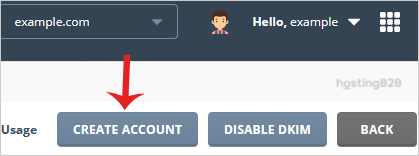
On the E-mail Accounts page, look to the top right-hand side and click the Create Account button to open the new account form. - Choose a Username
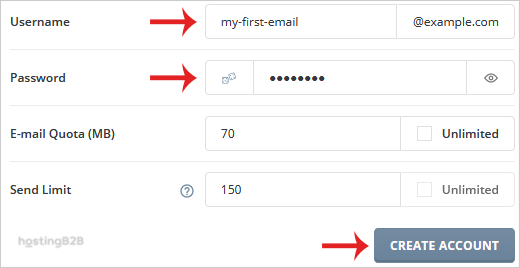
In the Username field, enter the first part of the email address you wish to create. For example, if you want the address [email protected], you would enter “info”. - Set a Secure Password
In the Password field, enter a strong, unique password for the new account. We highly recommend using the built-in password generator to create a complex password that is difficult to guess. This is a critical step for securing your account. - Configure Limits and Finalize
You can now set the E-mail Quota (the maximum storage space for this mailbox) and the Send Limit (the maximum number of emails that can be sent per day). You can leave these at the default values or adjust them based on your needs. When you are ready, click the Create Account button.

After clicking create, DirectAdmin will confirm that the account has been successfully created. The system will display the new email address, the password, and other server details. Be sure to copy this information and store it in a secure location, such as a password manager.
Next Steps After Account Creation
Creating the account is just the first step. To start sending and receiving messages, you need to access your new mailbox. You have two primary methods for this which are accessing webmail or configuring an email client.
Accessing Your Email via Webmail
The quickest way to check your email is through a web browser using Webmail. This requires no special software installation. Our guide on how to access your newly created email account provides detailed instructions for logging in.
Configuring an Email Client
For a more integrated experience, you can set up your new email account on desktop applications like Outlook and Thunderbird or on your mobile devices. To do this, you will need the POP or IMAP server settings provided on the account creation success screen. These settings typically include the incoming and outgoing mail server names, port numbers, and required authentication methods. Using these details ensures a secure connection between your device and our Business Email Hosting servers.
Frequently Asked Questions
The email quota is the total amount of disk space that a specific email account is allowed to use for storing messages and attachments. Setting a quota helps manage your overall hosting storage. You can learn more about how to manage your email quota in our detailed guide.
Yes, you can change your email password at any time through the DirectAdmin control panel. It is good security practice to update your passwords periodically. We have a guide that shows you exactly how to reset your email password.
IMAP (Internet Message Access Protocol) syncs your emails with the server, meaning actions you take on one device (like deleting a message) are reflected on all other devices. POP (Post Office Protocol) downloads emails to your device and typically removes them from the server. IMAP is generally recommended for users who access email from multiple devices.
The number of email accounts you can create depends on the specifics of your DirectAdmin Web Hosting plan. Please check your plan’s details or contact our support team to confirm your account limits.
Yes, the interface and steps are different for the cPanel control panel. If you use cPanel, please refer to our guide on how to create email accounts in cPanel for the correct instructions.