Keeping your website files secure is essential, and regularly updating your FTP password is a critical step in maintaining that security. This guide provides clear instructions on how to change the password for a specific FTP account within the SiteWorx control panel. It is important to note that this process is different from updating your main administrative access. If you need to reset your primary login, please see our guide to change the password of your SiteWorx account.
Table of Contents
Why Regularly Changing Your FTP Password Matters
Your FTP account provides direct access to your website’s file system. Protecting this access is fundamental to your overall website security strategy. Regularly updating your password helps prevent unauthorized access that could result from compromised credentials. Proactive password management is a simple yet powerful way to safeguard your digital assets and ensure the integrity of your site data.
How to Change Your FTP Password in SiteWorx
Follow these six simple steps to update the password for any secondary FTP account. This process allows you to enhance your SiteWorx FTP account security without affecting your main control panel login.
- Log into your SiteWorx account. This is typically accessed via a URL like www.example.com:2443/siteworx/.
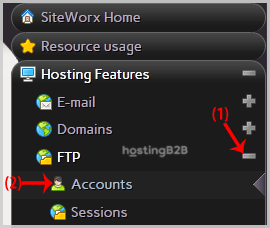
- From the main SiteWorx Menu on the left, navigate to the Hosting Features section. If it is not already open, click to expand it.
- Within Hosting Features, select the FTP menu item, and then click on the Accounts option to view all existing FTP users.

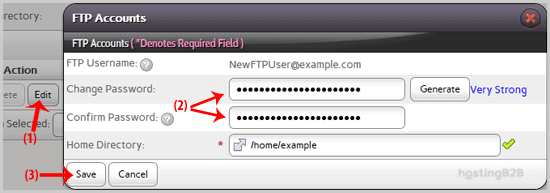
- You will now see a list of your FTP accounts. Locate the specific account you wish to update, and in the Action column for that row, click the Edit button.
- On the edit screen, enter your new desired password in both the Change Password and Confirm Password fields. For maximum security, we recommend using the Generate button to create a strong, random password.
- After entering and confirming your new password, click the Save button to apply the changes.
Your FTP account password has now been updated. You can immediately use the new credentials to connect to your server using your preferred FTP client.
Best Practices for Managing FTP Accounts
Effective FTP management goes beyond just passwords. To maintain a secure and organized hosting environment, consider creating unique accounts for different users or applications. This helps isolate access and track activity. You can learn how to create an FTP account in SiteWorx in our detailed guide. Additionally, it is wise to periodically review your accounts and delete any FTP account that is no longer needed. For a deeper look at protecting your infrastructure, explore our solutions for comprehensive Web Application Security.
Frequently Asked Questions
Your SiteWorx password grants you administrative access to the entire control panel to manage domains, email, and hosting features. An FTP password provides access only for transferring files to and from the server for a specific directory or website, offering a more limited and focused permission set.
For optimal security, we recommend changing your FTP passwords every 90 days. You should also change it immediately if you suspect an account may have been compromised or after sharing credentials with a temporary contractor.
A strong password should be long (at least 12 characters) and include a mix of uppercase letters, lowercase letters, numbers, and special symbols. Avoid using common words or personal information. The “Generate” button in SiteWorx is an excellent tool for creating secure passwords.
No, you do not need the old password to complete this process. As long as you are logged into your SiteWorx control panel, you have the necessary permissions to reset the password for any secondary FTP account.
While you can, it is strongly discouraged. Using unique passwords for each account is a critical security best practice. If one account’s password is compromised, using unique passwords prevents attackers from gaining access to your other accounts.