
Deploying a new Content Management System can seem complex, but using the right tools simplifies the process significantly. This guide provides clear, actionable steps to help you install Subrion using the Softaculous application installer directly within your cPanel account. Following this tutorial ensures a smooth and error-free setup, getting your website online in minutes.
Table of Contents
Before You Begin Prerequisites
Before starting the Subrion installation, ensure you have everything you need for a successful deployment. The primary requirement is access to a cPanel account associated with your reliable web hosting plan. You should have your cPanel login credentials ready. No other specific technical preparation is necessary as Softaculous automates the entire process for you.
How to Install Subrion A Step-by-Step Guide
Follow these detailed instructions to complete the installation. Each step includes explanations to help you understand the configuration choices you are making for your new Subrion website.
Step 1: Access Softaculous in cPanel
First, log into your cPanel account using your username and password. Once you are on the main dashboard, scroll down to the Software section. Locate and click on the Softaculous Apps Installer icon. This action will redirect you to the main Softaculous dashboard where you can manage hundreds of applications.
Step 2: Locate the Subrion Application
Inside the Softaculous panel, look at the navigation menu on the left side of the screen. Find the Portals CMS category and click to expand it. A list of available content management systems will appear. Find Subrion in this list and click the link. On the Subrion overview page, click the blue Install Now button to begin the setup process.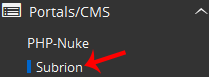

Step 3: Configure Software Setup
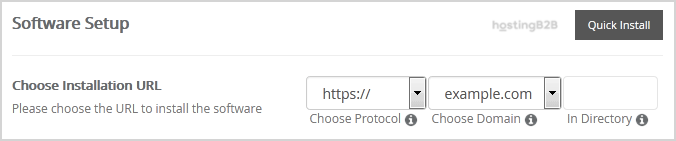
This screen contains the core settings for your installation. Pay close attention to these fields.
- Choose Installation URL Select the correct domain and protocol (http or https) from the dropdown menu. We strongly recommend using https for security.
- In Directory This field determines where Subrion will be installed. To install it on your main domain (e.g. example.com), leave this field empty. To install it in a subfolder (e.g. example.com blog), enter the directory name here.
Step 4: Create Your Admin Account
Next, you will set up the administrator credentials for your Subrion website. This account provides full access to your website’s backend, so it is vital to use strong and unique details.
- Admin Username Choose a unique username. For security, avoid common names like “admin” or “administrator”.
- Admin Password Create a strong, complex password. Use a combination of upper and lower case letters, numbers, and symbols.
- Admin Email Enter a valid email address. This address will be used for password resets and important notifications from your website.
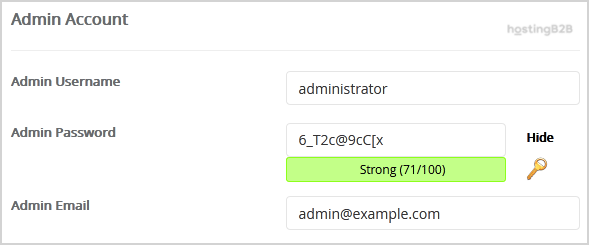
Important Note: Be sure to copy your new admin username and password and store them in a secure location. You will need them to log into your Subrion admin panel for the first time.
Step 5: Review Advanced Options and Install
Before finalizing, you can expand the Advanced Options section. Here you can customize the database name or configure automated backups. For most users, the default settings are sufficient. If you do enable automated backups, be mindful that they can consume significant disk space over time. Softaculous handles all aspects of database creation in cPanel automatically unless you specify otherwise.
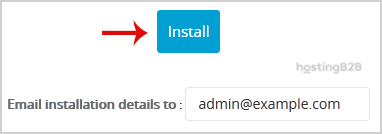
Once you have reviewed all your settings, scroll to the bottom of the page and click the Install button. The installation process will begin and should only take a moment to complete.
After the Installation Next Steps
Once the installation is finished, Softaculous will display a success message along with two links. One link will direct you to your new Subrion website’s homepage, and the other will be the URL for your administrative login page. You can now log in using the admin credentials you created and begin building your site. If you find Subrion meets your needs, you may also want to explore how to install other popular CMS platforms to see what works best for your projects.
Why Use Softaculous for Your Installation
Using a cPanel application installer like Softaculous offers significant advantages over a manual installation. The automated script handles file uploads, permissions, and database configuration, which eliminates common sources of human error. This method is not only faster but also more reliable, ensuring that your Subrion CMS is set up correctly from the start. It empowers users of all skill levels to deploy powerful web applications without needing deep technical expertise.
Frequently Asked Questions
Subrion is a free and open-source content management system. It is designed to help users build websites quickly and comes with a range of plugins and templates to extend its functionality for different needs, from personal blogs to business websites.
Yes you can. During the installation setup in Softaculous, use the “In Directory” field. Enter the name of the folder where you want Subrion installed, for example “blog” or “portal”. If you leave the field blank, it will be installed on your main domain root.
If you forget your password, you can use the “Forgot Password” feature on the Subrion admin login page. The system will send a password reset link to the administrator email address you configured during the installation process.
No you do not. When you install Subrion using the Softaculous Apps Installer, it automatically creates and configures the necessary database for you. This is one of the key benefits of using an automated installer.
Subrion is a flexible CMS suitable for many types of websites. It is particularly useful for users looking for a free platform with a good selection of free plugins and templates. The best choice always depends on your specific project requirements and technical comfort level.